Faculty Success Guide - copy
Faculty Success Step by Step Guide
Faculty Success Guide
Watermark Faculty Success is NJIT’s faculty activity reporting system used to document and track teaching, research, and service activities.
Faculty use the system to record their professional activities throughout the academic year and to generate their Faculty Annual Report.
Faculty Annual Reporting
Each year, faculty members are required to submit a Faculty Annual Report describing their teaching, research, and service activities and accomplishments from the previous academic year. This requirement is outlined in Sections 2.1.2 and 4.5.1 of the Faculty Handbook.
NJIT uses Watermark Faculty Success to support this reporting process.
Recording Your Activities
Faculty Success functions as a continuous activity log. Faculty can enter activities—such as publications, grant submissions, presentations, and committee service—as they occur throughout the year. Previously entered records can be edited or updated at any time.
Keeping your activities current in the system will make preparing your annual report easier.
Importing Publications
Faculty who maintain publication records in databases or reference management tools may be able to import citations directly into Faculty Success rather than entering them individually.
Examples include:
Scopus
Web of Science
Google Scholar
ResearchGate
EndNote
Mendeley
LaTeX/BibTeX
NJIT reference librarians can assist with transferring citations into Faculty Success.
Contact:
Annie Chatterjee, Ed.D.
Open Access and Scholarly Communications Librarian
aneliia.chatterjee@njit.edu
Need Help?
If you have questions not covered in this guide, please contact:
You may also want to consult your department for department-specific reporting requirements.
The New Faculty Experience interface was released on July 1, 2026, and is now the default view in Faculty Success.
What this means for you
- The New Faculty Experience has replaced the previous interface as the standard view
- Core functionality for data entry and reporting remains unchanged
- The system now features a modernized layout and improved navigation for a more intuitive user experience
Note: This update applies only to faculty-facing features. Administrative and data management tools are not affected at this time.
Key updates include:
- Navigation menu moved to the left-hand side
- Updated labels and button placement for improved usability
- My Profile replaces Activities and provides a narrative view of faculty accomplishments
- Streamlined access to downloading reports based on your profile configuration
Helpful resource
- Review the Key Features Comparisons section in this article to identify where familiar features are located in the new interface.
- Consult the Faculty Essentials guides in the Help Center for detailed, feature-specific instructions.
Need Help?
If you have questions or need additional support, please contact: facultyreport@njit.edu
Step 1: Log in to Faculty Success
- Navigate to https://www.digitalmeasures.com/login/njit/faculty.
- Log in using your UCID and UCID password.
- To log out, click your profile icon in the top-right corner and select Log Out.
Step 2: Review the Navigation Tools
When you first log in, take a few minutes to familiarize yourself with the left menu navigation tools.
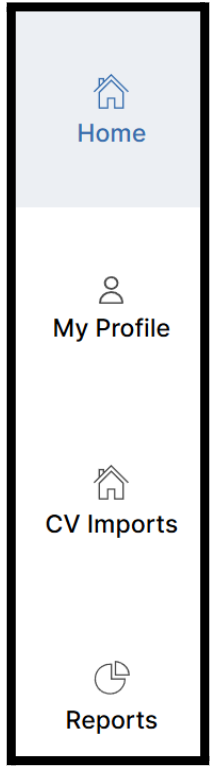 | Left Navigation MenuThe left side of the screen contains four main buttons:
Access Tasks & To-Dos, Tools & Services, and the Add Activity button.
View and manage all of your activities and profile information.
Quickly generate a CV using data already in the system.
Run campus-specific reports or create your own.
Use it to connect your ORCID account.
|
Visit the Managing Your Account Settings page to learn more about available settings and learn about Linking your ORCID to Faculty Success.
Step 3: Learn What You Can Do from the Home Page
The Home page is the first menu item you'll see after logging into Faculty Success. It offers a focused starting point, helping you review any matched publications and begin adding activities to your profile. From the Home page, you can:
- Review Tasks & To-Dos
- Add new activities using the Add Activity button
- Access Tools & Services -> Faculty Success Guide provided by Watermark
At the top of the Home page, a personalized greeting displays your first name—for example, “Welcome, Jolanta!” This lets you know you’re accessing your own Faculty Success account. If anything looks incorrect, log out and sign back in using your institutional credentials.
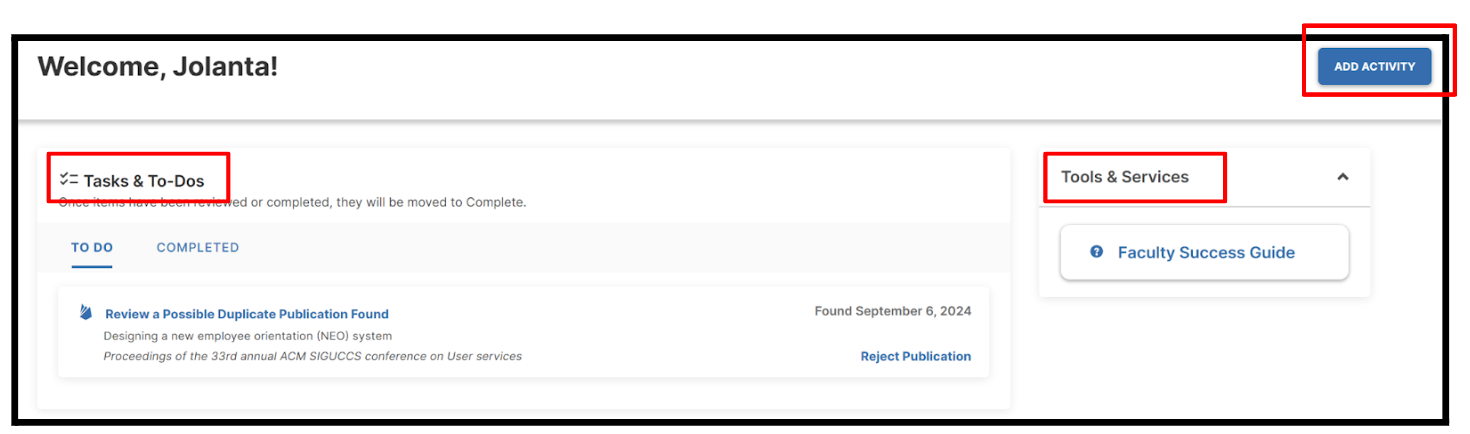
Tasks & To-Dos
Below the welcome message is the Tasks & To-Dos section. This section displays publications that Faculty Success has matched to you using Crossref.
For each matched publication, you can:
- Review citation details
- Approve or Reject the publication
Once reviewed, items move to the Completed tab.
For more guidance on how to manage matched publications, refer to Approving or Rejecting Matched Publications.
Add Activity
You can add new activities from the Home page by selecting the Add Activity button. This option opens a full list of activity types, such as scheduled teaching, publications, awards, or professional service, so you can begin to add new activities to your profile.
For detailed steps on entering activities, see Entering New Activities.
Tools & Services
Currently, this section provides a link to the Faculty Success Guide.
To learn more about how to use the Home page, go to the Watermark tutorial Getting Started From the Home Page.
Step 4: Review and Edit Your Profile
The My Profile menu item in Faculty Success is your personalized workspace for reviewing, updating, and exporting your academic activities. Specifically, from this page, you can manage your academic records, customize your layout, and access tools for reporting.
Each activity you enter into Faculty Success, such as courses taught, publishing a paper, or serving on a committee, is referred to as a record within the system. You may also see the term activity used throughout the system. These two terms are used interchangeably and refer to the same type of information: entries that document your academic contributions.
To Access Your Profile:
- Click My Profile in the left menu.
- Select Personal and Contact Information.
- Verify that your first name, last name, and email address are correct.
- Enter additional information if required by your department or college.
- Click Save (top right).
Go to Building and Managing Your Faculty Profile to learn how to update your personal information, search your records, and modify specific activities.
Customizing the Page Layout
The Customize Display button allows you to personalize how the My Profile page appears. You can adjust the layout to prioritize categories you access frequently and collapse categories you use less often for easier navigation. If you’d like to personalize your profile layout, visit Personalizing the Layout of your Profile for step-by-step guidance.
Searching For and Modifying a Specific Activity
The Search bar at the top of the My Profile page allows you to locate a specific record you've already entered to review and modify it as needed. You can search by keywords, titles, or other information included in the record. For tips on using the search functionality, refer to Finding and Editing Existing Activities.
Viewing Categories Without Records
Below the search bar, you'll find a toggle labeled Show categories with no records in profile. Enabling this option allows you to view all categories available to you, including those for which no records have been entered yet.

This feature is useful if you're unsure whether a category exists for a certain type of activity. It also helps identify categories where you may need to enter new information.
Need Help Deciding What to Enter?
If you're unsure which types of records to enter or if you need clarification on institutional expectations for your profile, email facultyreport@njit.edu for additional guidance.
Step 5: Add, Review, and Complete Activity Data
You can add new records from My Profile by selecting the Add Activity button. This opens a list of two options: Single Activity or Import From CV.
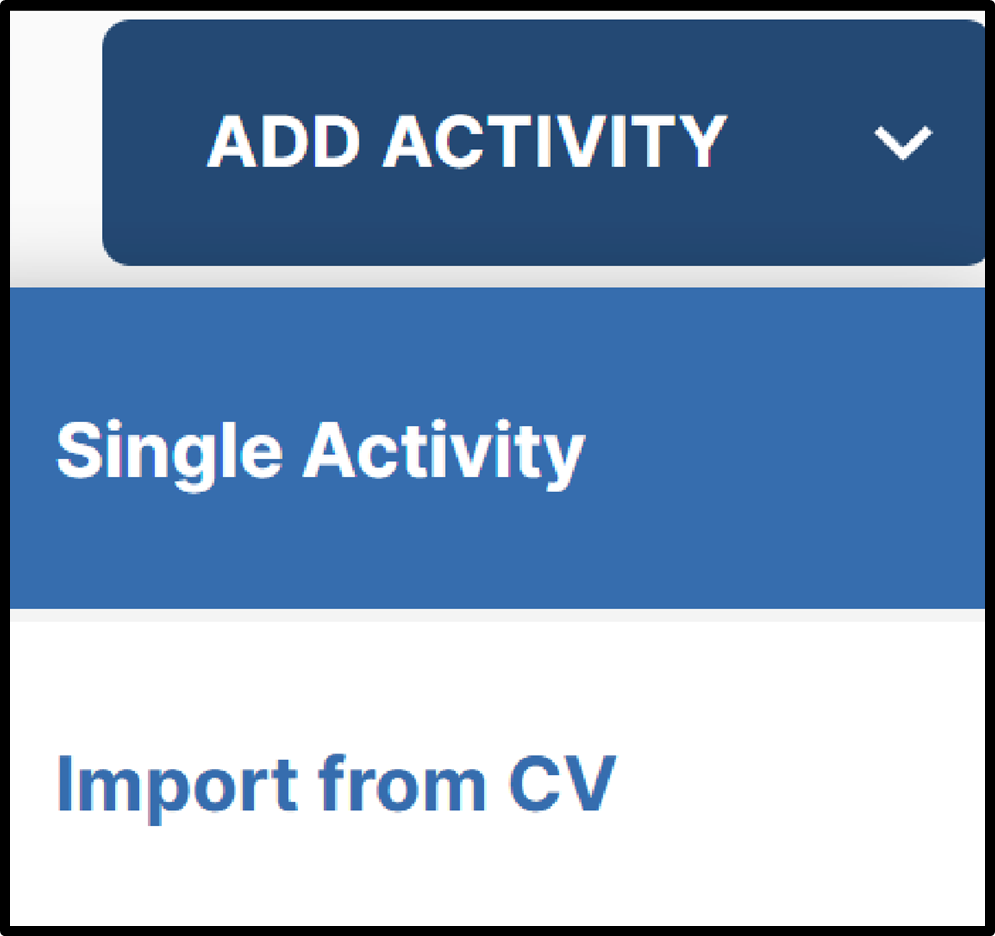 |
- Single Activity: This option opens a full list of activity types available at your institution, such as scheduled teaching, publications, awards, or professional service, so you can add new records to your profile.
- Import From CV: This option allows you to use your CV to add records to your profile.
To learn more, refer to Entering New Activities.
Administrative, Permanent, and Yearly Data
Within My Profile, review the Administrative information:
- Permanent Data (Starting Rank, Start Date at NJIT, Dates Attained Rank, Tenure Decision Year, Separation Date, If currently a Ph.D student, date of most recently completed graduate comprehensive examination)
- Yearly Data
Ensure all information is accurate and complete.
Add or update information in the following sections as needed:
- Academic, Government, Military, and Professional Positions
- Administrative Assignments
- Awards and Honors
- Consulting
Click Save when finished.
Education
Education data is automatically imported from Banner. If information is incorrect, email facultyreport@njit.edu.
Other Profile Sections
Review and update the following sections as applicable:
- External Connections and Partnerships
- Faculty Development Activities Attended
- Licensures and Certifications
- Media Contributions
- Professional Memberships
- Academic Advising
- Directed Student Learning (e.g., theses, dissertations)
- Non-Credit Instruction Taught
If you find errors in system-imported data, contact facultyreport@njit.edu.
Scheduled Teaching & Course/Curriculum Development
Scheduled Teaching
- Course data is imported from Banner.
- Courses are typically added in late October or early November.
- Grade distributions are added after grades are finalized.
- Faculty cannot add or remove courses.
- Faculty may open a course to add additional details if directed by their department.
- Advising sessions are not included here and must be entered under Academic Advising.
Course/Curriculum Development
- This section is manually maintained by faculty.
Step 6: Add Scholarship, Research, and Publications
Scholarship & Research Sections
Use the following sections to document your work:
- Research Areas, Methods, and Tools
- Artistic and Professional Performances and Exhibits
- NIH Activities
- NSF Activities
- Contracts, Grants, and Sponsored Research
- Intellectual Contributions
- Intellectual Property (e.g., copyrights, patents)
- Presentations
- Research Currently in Progress
Co-Authors and Collaborators
- The first faculty member who enters an activity is listed as the primary editor.
- Additional NJIT faculty can be selected from a dropdown list.
- Non-NJIT collaborators may also be added.
- Once added, the activity appears in all collaborators’ profiles.
- Only the original creator can edit the record. If corrections are needed, collaborators should contact the original creator.
Add Publications
- Go to Intellectual Contributions.
- Click Add New Item.
- Select the Publication & Contribution Type and Status.
- Enter the Title and contributor information.
- Add contributors in order of responsibility. Drag rows to reorder if needed.
- Enter all relevant publication details.
- Upload supporting documents (reprints, reports, etc.).
- Click Save.
⚠️ Important:
Publications without dates will not appear in annual reports. Use a single record and update dates as the publication progresses (submission, acceptance, publication).
Import Publications
You may import publications using the Import button in the Intellectual Contributions section.
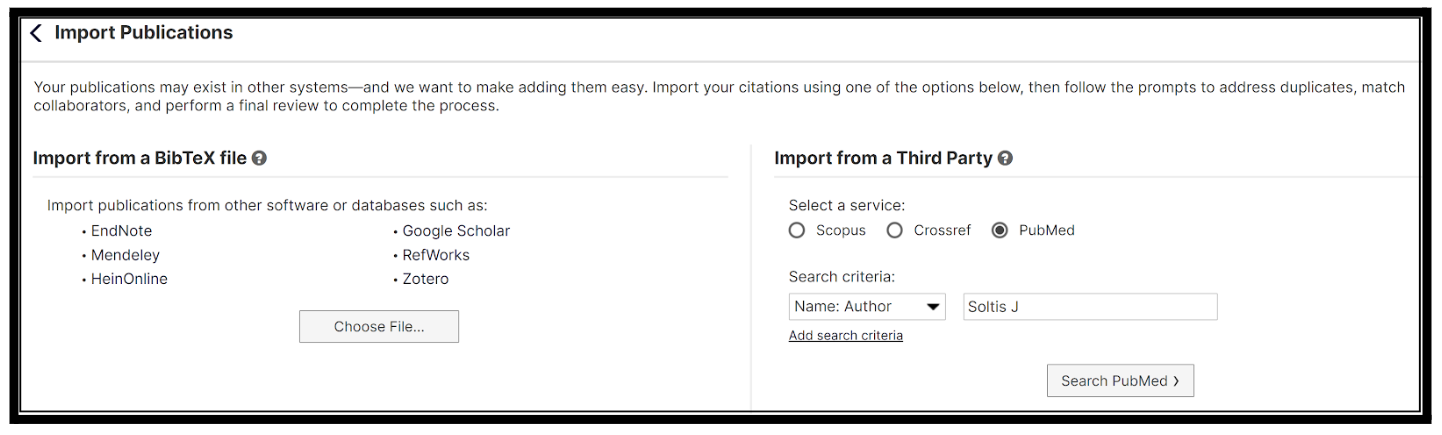
Options include:
- Uploading a BibTeX file (EndNote, Mendeley, Zotero, Google Scholar, RefWorks, HeinOnline)
- Importing directly from third-party databases such as Crossref, PubMed, or Scopus
After importing, click the back arrow to return to the Scholarship & Research section.
For detailed instructions, refer to the Digital Measures Direct Data Import documentation.
Step 7: Add Service Activities
- Click Add Activity.
- Scroll to the Service section.
- Choose a service type:
- Department
- College
- University
- Professional
- Public
- Enter service details.
- Enter start and end dates:
- If service is ongoing, leave the End Date blank.
- If service occurred on a single day, you may leave the Start Date blank.
- Click Save Activity.
Tutorials:
Step 8: Learn how to Run Reports
Export
The Export feature on the My Profile page allows you to quickly download your activity data in a structured format. You can choose from options such as a formatted Quick CV or a Custom Report, depending on your reporting needs.
Reports
- Click Reports in the left menu.
- Select an existing report or click Create a New Report.
- Choose:
- Blank Document (for custom templates)
- Vita (for CVs, grant submissions, or award formats)
Rapid Reports
Rapid Reports allow you to run reports directly from data entry pages. For example, while editing the Scheduled Teaching section, you can click on the top tab next to the Search Tips.
- Click the Rapid Reports tab.
- Select a report from the list.
- Enter the Start Date and End Date.
- Click the Run Report button.
- Open the Word document and click Enable Editing.
- Save the file to your computer.
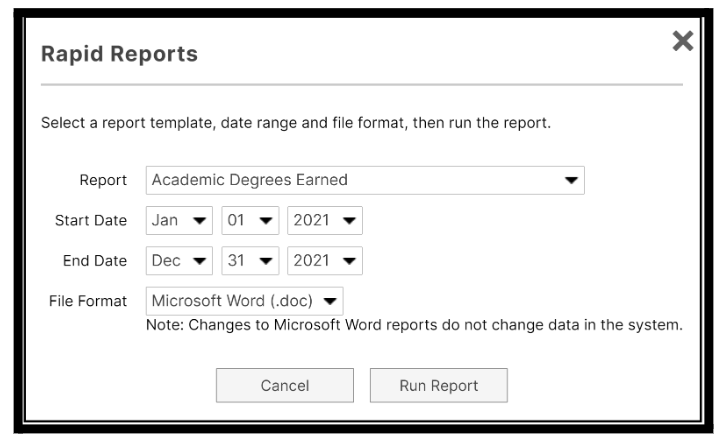
Editing a report does not change data stored in the Faculty Success system.
Reporting Dates
Annual reports are generated based on activity dates:
- Activities dated 9/1/2024 – 8/31/2025 appear in the 2024–2025 annual report.
- Activities spanning multiple academic years appear in multiple reports.
- Entering dates accurately is essential.
Tutorials
- Creating a New Report: Formatted
- Running and Customizing Reports
- How to Run Full-Service Reports
- Creating a Report from your Activities
- Creating an Export Data Report
- Creating a New Report: Export Raw Data
- Saving Export Data Reports
- Add/Edit Records within Formatted Reports
- Self-Service Reporting Tools for Administrators
- Customize your CVs
- Transferring your Academic History with CV Imports
- CV Imports Best Practices
- FAQ: Customized CVs in Faculty Success
- Sample Email Announcement for Faculty on Customizable CVs
- Search Using "Create a New Report"
- Best Practices for Building and Testing Custom Reports.
Accessing Faculty Success as an Administrator
You can access the Faculty Success Administrator interface using one of the following methods:
Option 1: Direct Login
Log in using the Faculty Success administrator link:
http://www.digitalmeasures.com/login/njit/faculty/authentication/authenticateShibboleth.do
Option 2: Through the NJIT Highlander Pipeline
- Log in to the NJIT Highlander Pipeline (my.njit.edu).
- Locate the Faculty Services card.
- Click the Faculty Success link.
Once you are logged in to Faculty Success:
- Select your avatar in the upper-right corner of the page.
- From the drop-down menu, choose Switch to Admin View to access the Administrator interface.
Once you are in the current faculty experience, you will be able to access the necessary tools to manage your users and their data. To navigate to the new faculty experience, simply click on the banner within your Activities.
The top menu displays administrator tools that you can use to manage users, create reports, and from the Tools menu, view user statistics and security.
Manage Data
Use the Manage Data to search for a user and edit their profile.
Type the user’s last name in the User text box and click Continue.
- You will then be directed to the user dashboard, where you can initiate changes.
- You can also click on the Manage Administrative Data for Users to open the sub-menu and click Continue to edit individual user data.
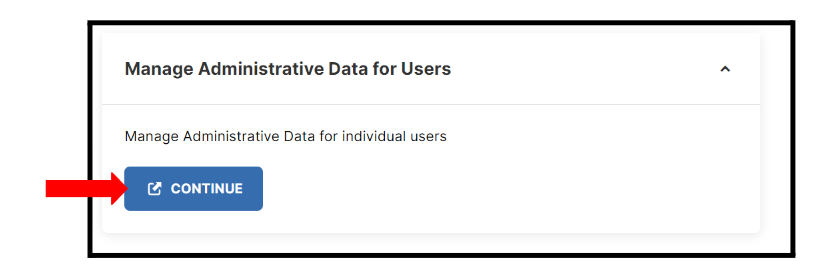
Select the user you wish to view and click Edit to make changes. Do not use the Copy Forward link.
Reports
From the Reports menu, you can view or create new reports.
Running and Customizing Reports - Watermark tutorial that will teach you how to run reports that have been custom-built for your campus.
Tools - Users and Security
- Select the user and click on the Edit icon to see the user information.
- Click the Manage Data icon to make changes to the user dashboard.
Creating User Accounts - Watermark tutorial that will teach you how to easily create user accounts for individuals who need access to Faculty Success.
As a College Limited Administrator, you can access the resources listed below:
- Manage Data: Read/Write: Enter or manage other users' teaching, research, and service activities, including hidden and read-only fields.
- CV Imports: Access the CV Imports tool for yourself or for faculty whose data you manage. Upload a current Vita and drag and drop details of your activities into the relevant screens and fields.
- Full-Service Reports: Run reports based on templates created by Watermark. Report templates can be restricted to specific units - college or department - if they should only appear to users assigned to specific units or only include faculty assigned to specific units. If you need help creating a new report, please email your request to facultyreport@njit.edu.
- Self-Service Reports: Export Data: Query the data in the solution using the parameters you identify. This permission can also be toggled to either include the ability to include hidden fields in report output or exclude this access for a given security role.
- Self-Service Reports: Formatted: Run reports based on templates created by Watermark. Report templates can be restricted to specific units - college or department - if they should only appear to users assigned to specific units or only include faculty assigned to specific units. If you need help creating a new report, please email your request to facultyreport@njit.edu.
- Usage Statistics: View statistics on the use of Faculty Success by your users. These include the number of logins and the number of records added or edited. You can also download Audit Logs.
- Users and Security: Create new users, edit, enable/disable, or delete existing user accounts. View security role details and associated users. The university Administrator can also see a comprehensive list of custom reports and the security roles to which they are available.